An On-Screen Takeoff Alternative for HVAC Ductwork
Try AI Takeoff Free
No credit card · Upload a PDF in 10 seconds · Runs in your browser on Mac or Windows
Try AI Takeoff FreeSee an AI Takeoff in 10 Seconds
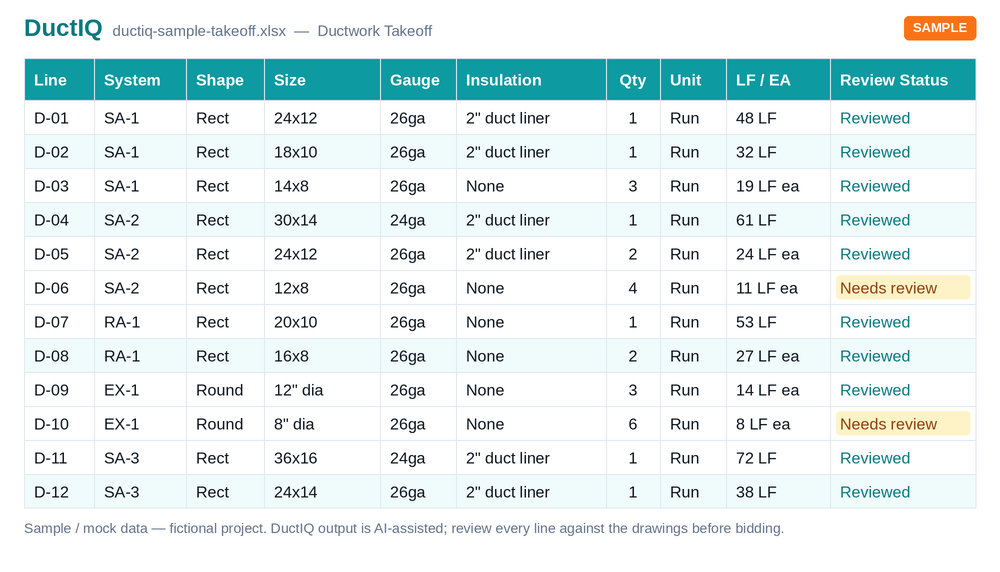
The sample is a real DuctIQ takeoff workbook: no signup. Plans and credits are on the pricing page.
On-Screen Takeoff (OST) is ConstructConnect's established on-screen takeoff product, used by subcontractors across many trades to measure lengths, areas and counts off PDF plans. It does that job well, and plenty of mechanical shops have years of conditions and habits built up in it. This page is a fair comparison for one kind of user: the HVAC or sheet metal estimator who spends most of the day tracing duct.
DuctIQ is built only for that work. You upload the mechanical PDF in a browser, the software reads the ductwork at scale, and you get back line items grouped by system and size, with fittings counted and equipment read from the schedules. You review the lines it flags, then export to Excel. Below is where each tool fits and how to test the switch on a real bid.
Where On-Screen Takeoff stands in 2026
ConstructConnect owns On-Screen Takeoff alongside PlanSwift and Takeoff Boost, so OST users are now being offered the same AI assist PlanSwift users are. ConstructConnect's April 2026 announcement made Takeoff Boost, its AI and computer vision takeoff automation, available to customers through On-Screen Takeoff. That speeds up placing measurements across any trade.
The core of OST has not changed: it is a conditions-based measuring tool. You define a condition for each duct size, set the scale, and trace. The software records geometry; deciding what each line is, which system it belongs to and how it changes size along the run is still the estimator's call. ConstructConnect does not publish a standard OST price, so licensing is quoted by their sales team.
Conditions you trace vs a takeoff you review
The practical difference shows up on a busy floor plan. In OST, a 40-run supply layout means building conditions for every size you see, then tracing each run and tallying each fitting. In DuctIQ the reading and measuring happen first, and your time goes into checking what came back.
| Task on a mechanical sheet | On-Screen Takeoff | DuctIQ |
|---|---|---|
| Set up for each duct size | Create a linear condition per size and type | Sizes read from the duct labels on the drawing |
| Measure the runs | Trace every run by hand after setting the scale | Measured automatically at the drawing scale |
| Separate supply, return and exhaust | Organised by how you name and colour conditions | Returned grouped by system |
| Fittings | Counted with count conditions, one click each | Counted as their own line items |
| Equipment and air devices | Read off the schedules and keyed in | Read from the schedules by tag |
| Checking the result | Re-walk the plan yourself | Low-confidence lines flagged with a reason |
| Trades covered | Any trade | HVAC ductwork only, by design |
A workflow comparison, not a ranking. OST is a capable multi-trade measuring tool; DuctIQ trades that breadth for depth on ductwork.
How the automated duct takeoff works
Start your free takeoffOr download a real sample takeoff first
When staying on On-Screen Takeoff is the right call
If your estimators take off several trades in one program, or your mechanical bids lean on piping, plumbing and controls as much as on duct, a general tool like OST covers more ground than DuctIQ ever will. If your company has a library of OST conditions and a linked estimating workflow that the whole office relies on, that history has real value too.
DuctIQ does not try to replace that. It does not take off pipe, concrete or finishes. A sensible pattern for a mixed shop is to keep OST for everything else and let DuctIQ handle the duct portion, since its output lands in the same spreadsheet.
When DuctIQ is the better fit
DuctIQ earns its place when ductwork is most of what you bid and the tracing is where the hours go.
- You bid HVAC or sheet metal jobs from mechanical PDFs most weeks.
- You want duct linear feet by size and system without building a condition for every size first.
- You want fittings and equipment counted for you, then checked by you.
- You price in Excel and want structured columns (system, size, gauge, quantity) instead of re-keyed totals.
- You work on a Mac or from different machines and would rather use a browser than an installed program.
Checking a DuctIQ takeoff before it goes in a bid
Moving from a tool where you measured every line to one where the software measured them raises a fair question: how do you trust it? DuctIQ answers it line by line. Each quantity carries a Confidence level, runs the AI was unsure about are flagged with the reason (no readable scale, a missing size callout), and every line points back to its source sheet. Where a drawing does not give a gauge, the SMACNA minimum is shown and labelled so you can confirm it for your pressure class.
That makes the review targeted. You clear the flagged lines, spot-check a dimension you already know, compare system totals with your feel for the job, and only then export.
How to test the switch on your next bid
You do not need to drop OST to find out. Take one mechanical sheet you have already taken off in OST, run it through DuctIQ, and compare duct footage by size, fitting counts and the time you spent. If the numbers hold up and the review is faster than the tracing, move more duct work over. If not, you have lost nothing but one upload.
- Download the sample takeoff first to see the exact Excel layout.
- Run your first takeoff free on a real drawing, no card required.
- Paste the export into the pricing sheet you already use.
Download a sample takeoff (Excel)See DuctIQ pricing
Run your first takeoff free
Upload a mechanical PDF and get a reviewable ductwork, fittings, and equipment takeoff you can export to Excel. No credit card to try your first drawing.
Built by a practicing P.Eng and principal of an Ontario mechanical contracting firm, for the estimators at that firm.
Start your free takeoff Download a sample takeoff See pricingNew to AI takeoff and want a hand? Send us your first drawing and we'll help you review the output, or book a 1:1 walkthrough.
Related HVAC takeoff guides
Frequently asked questions
Is DuctIQ a replacement for On-Screen Takeoff?
For HVAC ductwork, yes: it replaces tracing duct runs with an automatic takeoff you review. It is not a multi-trade measuring tool, so if you take off piping, plumbing or other trades in OST, keep it for those and use DuctIQ for the duct.
Does On-Screen Takeoff have AI now?
ConstructConnect made its Takeoff Boost AI available through On-Screen Takeoff in 2026. It speeds up measuring and counting across trades. It does not turn OST into a mechanical-specific tool: separating systems, typing fittings and reading equipment schedules is still left to the estimator.
Can I use my On-Screen Takeoff conditions in DuctIQ?
There is nothing to import. DuctIQ reads duct sizes from the drawing labels rather than from conditions you define, so there is no condition library to rebuild before your first takeoff.
Does DuctIQ work with my current estimating spreadsheet?
Yes. DuctIQ exports standard Excel and CSV with structured columns, so the takeoff drops into the same pricing workbook you use today.
Do I need to install anything?
No. DuctIQ runs in the browser on Windows or Mac. Upload a mechanical PDF and review the takeoff on screen.
How do I compare DuctIQ against my OST takeoff before paying?
Pick a sheet you have already done in On-Screen Takeoff, run it through DuctIQ as your free first takeoff, and compare footage by size and fitting counts. You can also download a sample Excel takeoff with no account.